Downloads
Image placeholder: 960 × 540 px (suggested use: build or download flow diagram). Replace it later with a verified image of the same dimensions.
Every TBoard resource for the R5A — system images, SDK sources, flashing tools and hardware design files — is published in the following places:
| Location | Contents |
|---|---|
Baidu Netdisk (百度网盘) (share code qf5j) | Images, tools, hardware design files, chip datasheets, QC reports |
| TBoardDex on GitHub | SDK manifest, kernel and U-Boot sources |
| Forum | Release announcements and verified checksums |
Where to start
- Just want to boot the board? Download a Debian or Ubuntu image from Firmware Images, write it with the tools on Tools & Drivers, then follow Flashing.
- Building your own image? Start with SDK & Sources.
- Designing hardware or a carrier board? Take the schematic, DXF and STEP files from Hardware Files.
Board index
| Board | SoC | Hardware files | Firmware images | SDK & sources | Tools |
|---|---|---|---|---|---|
| TBoard R5A | RK3588S | Design files | Images | SDK | Tools |
Add one row per board as new platforms arrive. Keep every download link on TBoard-owned storage and point release notes at the forum.
How the Drive is organised
| Section | What you find there |
|---|---|
| Read before use | Known issues, precautions and image-specific notes |
| Development tools | USB drivers, flashing tools, SD-card tools, serial terminals |
| Hardware information | Schematic, PCB layout, 2D/3D drawings, BOM, connector datasheets |
| Linux image | Debian and Ubuntu images per board and board revision |
| Android image | Android images where a board supports them |
| Rockchip official documentation | SoC peripheral manuals referenced by these pages |
| SDK source code | SDK source packages, matching the GitHub trees |
| Quality inspection reports | Factory test reports per production batch |
Folder names and contents are updated in place — always take the newest file from the folder instead of a copy passed around by e-mail.
Naming, versions and revisions
- Image file names carry board, distribution, desktop variant and build date. Two files that differ only in date are different builds; read the release note before replacing a working image.
update.imgis the eMMC/factory image (whole-disk, flashed with RKDevTool orupgrade_tool). A plain.img/.img.xzis the microSD image.- Match the board revision (V1.0, V1.1 …) printed on the silkscreen. The V1.1 changes are listed on Hardware Files.
- The default login of every official image is
tboard/tboard(root/rootfor the administrator account) — change it after the first boot, see First Boot.
Verify a download
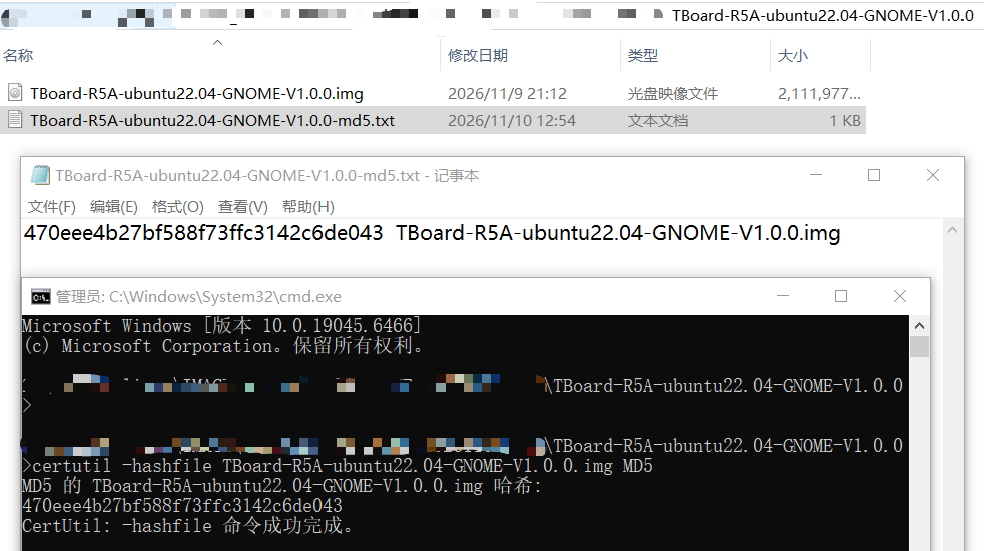
Compare the MD5 of the file you downloaded with the value published in the
-md5.txt file.
Windows (run in cmd):
certutil -hashfile TBoard-R5A-ubuntu22.04-GNOME-V1.0.0.img MD5
Linux (md5sum):
md5sum TBoard-R5A-debian11-Xfce-V1.0.0.img

An image that fails the check will usually fail halfway through flashing, so verify before writing.
Writing checklist
- Use only TBoard-owned domains and download endpoints.
- Keep board-specific parameters on the TBoard R5A page.
- Put images in
static/img/and reference them as/img/.... - Avoid raw angle brackets in MDX; wrap placeholders such as
<SoC>in backticks.
Related
- Firmware Images — Debian / Ubuntu images for the R5A.
- Tools & Drivers — RKDevTool, upgrade_tool.
- SDK & Sources — manifest, kernel, U-Boot.
- Hardware Files — schematic, DXF, 3D, BOM.